

Quick guide
Get started with SaveYourDay in a few minutes. Create tasks, change the order, set dates and find your way with the overviews.
Follow the steps and you will soon know the essentials of SaveYourDay.
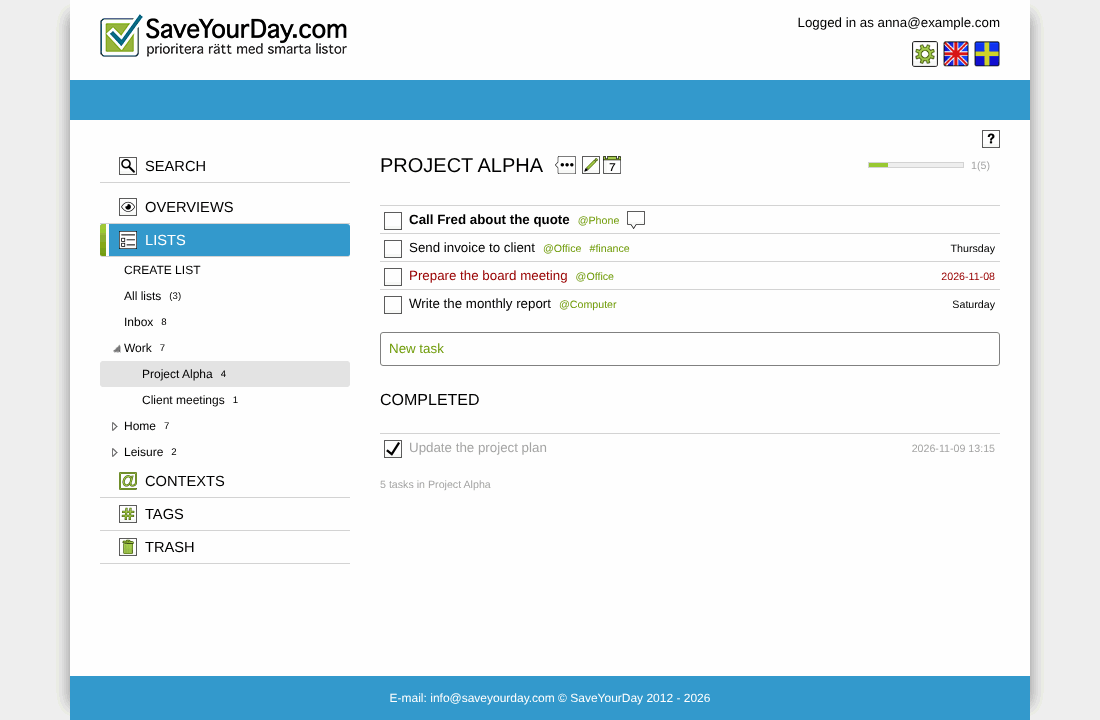
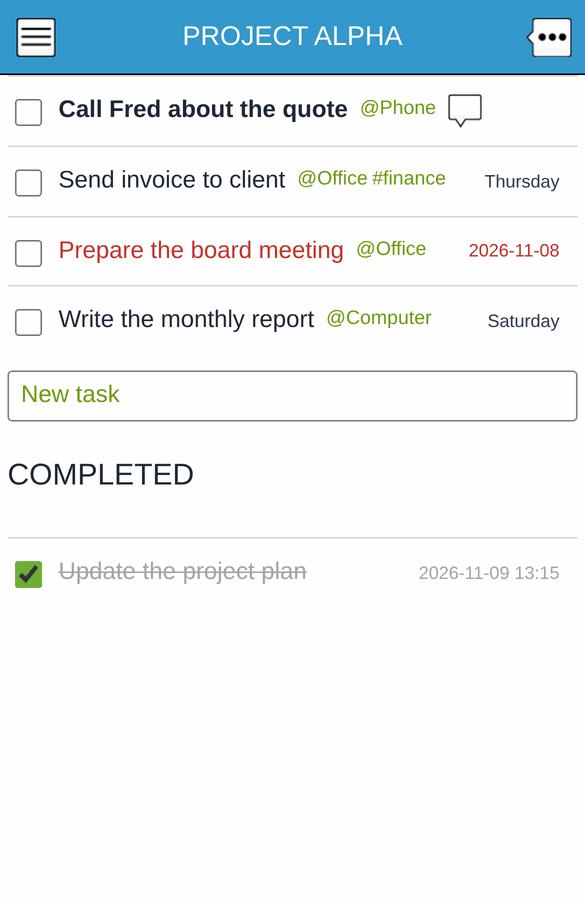
On your phone the same list looks like this. You don't need an app; just open SaveYourDay in the browser.
Get started
- Create a free account and log in.
- Type a task in the New task row in a list and press Enter.
- Click a task to change the text.
- Drag the task to change the order in the list.
- Drag the task to Today in the left menu to give it today's date as due date.
- Move the mouse over the task. Click the date picker to set a due date and the pen to write a comment.
- Choose Make sublist in the row's quick menu to turn the task into a list.
- Create a new list, context or tag from the left menu.
- Click the help icon at the top right to get help about the view you are in.


Find your way
- Choose Scheduled in the left menu to see everything that has a date.
- Give tasks a context or tag to see them together whatever list they are in.
Tip! Want to practise? Get a ready-made list with all the steps in Listbanken.