

Smart list headings
Set dates, context and tags on a whole list instead of on every task. The list shows up in the overviews when it is time.
With smart list headings you work with the whole list instead of with each task. Lists get shorter and easier to follow, and they are easy to reuse, for example by emailing the project list to a colleague or making variants of a checklist.
Set properties on the whole list
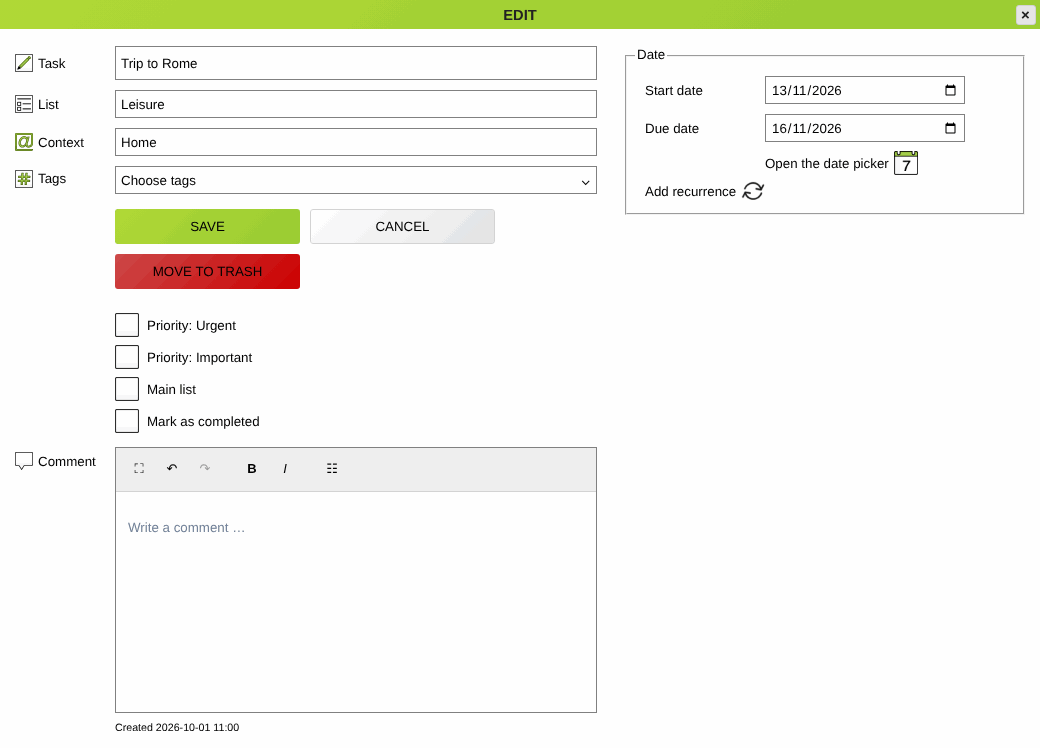
In SaveYourDay a list is the same thing as a task. So you can set exactly the same properties on the list as on the tasks in it: start and end dates, context, tags, priority, Urgent and comment.
The advantage of dates on the list is that you only change one place when the date moves. The whole list shows up in the overviews when it is time to start or finish, for example in Today. Perfect for checklists and project lists. Single tasks in the list can still have their own dates, such as an earlier deadline.
How to
Click the pen next to the list's heading to open Edit list, or the calendar beside it to set dates. Set the properties as usual and save.


The list's menu
Every list also has a menu with smart commands. You can, for example:
- copy the list to make a new variant, read more under Copy list,
- email the list,
- complete all tasks at once,
- throw the whole list in the trash.
Tip! To keep a list in Today at all times, give the list the status Urgent. Read more under Urgent.
Example: dates on a list
Anton has a checklist for the bookkeeping he does at every month end. The list is called "Bookkeeping checklist – March", and everything in it should be done between 20 and 25 March. He sets a start date of the 20th and a deadline of the 25th on the list. The whole list then shows in Scheduled, and on 20 March in Today. Anton only sets dates in one place.
Example: the packing list in Within 7 days
Give the packing list a deadline on the day of the trip, and it shows up in Within 7 days the week before. There you see it next to everything else you need to get done.
Example: the context @Errands and shopping on a whole list
Write the shopping list as an ordinary list and set the context Errands and shopping on the list. The whole list then shows in the context, together with other errands from other lists. In the context you can put everything in the order you will do it.
Example: tags on a whole list
Sometimes you want to see what you wrote in different lists in one place. Tag the lists, and you see them together in the tag's view, along with single tasks that have the same tag.