Tags
Tags label tasks across your lists. A task can have as many tags as you like.
Every tag has its own view under Tags in the left menu. A task can have as many tags as you like. In the tag's view the tasks are in the order they were created, and the order cannot be changed.
- A new task here gets the tag at once and goes to the Inbox.
- Drag a task to a tag in the left menu to add the tag.
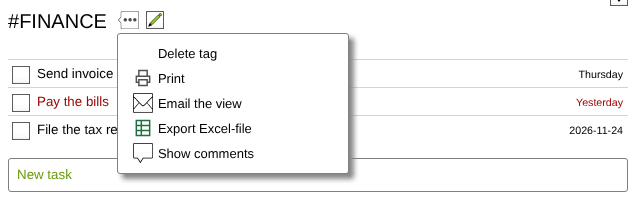
- The view's menu has Email the view, Export to Excel, Rename and Delete. If you delete the tag, the tasks stay, without the tag.
Tip! Writing a weekly report? Tag the tasks, email the view to yourself, finish it and send it on.
Label across your lists
A task is in one list and has one context, but it can have as many tags as you like. That makes tags right for anything you want to collect from several lists: waiting for, projects, people or customers.
Example: the tag "Waiting for"
If all your work tasks are in one list, you sometimes need a selection. The tag "Waiting for" collects tasks where you are waiting for someone else to finish first. Look at the tag before you call or email, and you won't miss anything.
Example: tags for projects
It can be useful to group tasks by project, especially if you have one shared to-do list for all projects. Tag the tasks with the project's name, and the tag's view shows everything about the project.