

Quick menu
The quick menu has the choices that fit where you are. Here are the row's menu, the list's menu and the view's menu.
The choices in the menu adapt to where you are: which view you are in, whether the row is a list or a task, and whether it is the list's heading.
On a computer, point at the row and click . On a phone, tap the row and choose the menu in the toolbar at the bottom. The view's menu is next to the heading.

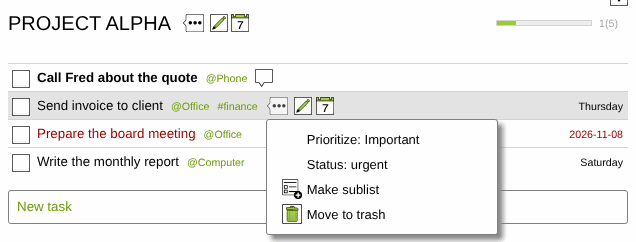
The row's menu for a task
- Prioritize: Important – make the task important, or normal again.
- Status: urgent – keep the task in Today, read more under Urgent.
- Move to today – only in Overdue: gives the task today's date.
- Postpone for a day and for a week – in Today and Within 7 days; in Overdue only a week.
- Make sublist – turn the task into a list.
- Move to trash.
The row's menu for a list
In addition to what a task has:
- Go to list – open the list.
- Copy list, Email and Export – read more under Copy list and Email the view.
- Complete all – complete the list with everything in it; Unmark all opens it again.
- Make main list, and Make task when the list is empty.
- Print – open the list and print it.
The view's menu
- Help – help for the view you are in.
- Print, Export to Excel and Email the view.
- Sort A–Z – in a list, and Sort lists A–Z in All lists.
- Move all to today – in Overdue.
- Complete all – in a list and a context.
- Rename and Delete – in a context or tag. The tasks stay, without the context or tag.
- Empty trash – in Trash. It cannot be undone.