

Import
Read lists and tasks from an Excel file. You see everything in a preview before anything is saved, and nothing you already have is overwritten.
Do you keep your to-do lists in Excel, or in another tool that can save as Excel? Then read them into SaveYourDay in one go instead of typing them again.
How to import
Open the account menu and choose Import from Excel. Then click Choose Excel file.
Preview before anything is saved
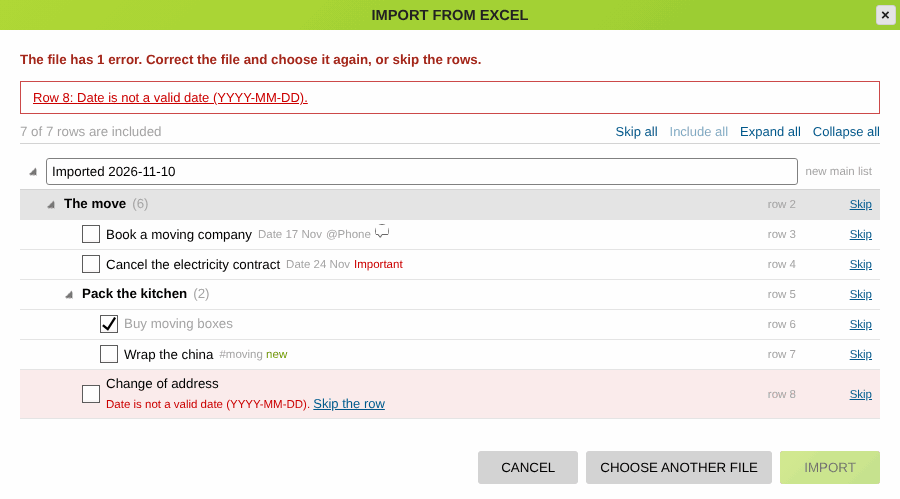
Before anything is saved you see how many tasks and lists will be created and how they fit together. Here you can:
- rename the new main list,
- skip rows you do not want,
- tick or untick whether a task is done.
If the file has errors, they are shown with row number and reason. Correct the file and choose it again, or skip the rows. Only when you click Import is everything created. If you click Cancel, nothing happens.
Everything goes into a new main list called Imported and today's date, unless you give it a name of your own, and it opens straight away. Nothing you already have is overwritten. Contexts and tags you do not have yet are created.
The template
Choose Download Excel template in the import box. The template has one row per task or list, a few example rows and a sheet that explains each column. Only the first sheet is read. The Id and Parent id columns decide which list a task goes into. Dates are written YYYY-MM-DD and choices such as Done and Important with Yes or No. The Comment (Markdown) column takes formatted comments with headings, tables and colours.
The file may be at most 5 MB and have at most 1,000 rows, or 5,000 rows with Premium.
Tip! A list you have exported has the same columns as the template. You can change it and import it again.