Contexts
A context is the place or setting where a task is done. Collect everything to do on the phone, in town or at the meeting, whatever the list.
Every context has its own view under Contexts in the left menu. A context is the place or setting where the task is done, for example "Buy paint brushes" @Hardware store. You can create as many contexts as you like; a task has one context.
- A new task here gets the context at once and goes to the Inbox.
- Drag a task to a context in the left menu to give it that context.
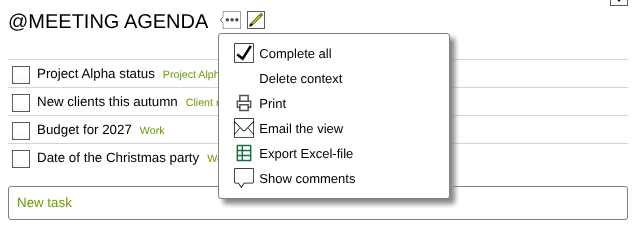
- The view's menu has Email the view, Export to Excel, Complete all, Rename and Delete. If you delete the context, the tasks stay, without a context.
Order in two dimensions
You can set the order both in the list and in the context. Drag the task where you want it, or use the arrows in the toolbar on a phone. The order here applies only to this context.
Tip! Create a context "Soon" and put it on what you will do shortly. You can then order those tasks the way you want to do them, whatever list they are in.
Lists can have a context too
Set the context on a whole list, and the whole list shows in the context. Read more under Smart list headings.
Lists, contexts and tags
The list says what the task belongs to, the context where or how it is done, and tags anything else you want to collect. With all three you write the task once and find it from several directions. Read more under Tags and Sort in two dimensions.
Example: the context @Errands and shopping
The context shows everything you need to buy or get done, whether it is office supplies, paint brushes for the renovation or Christmas presents for the children. Before you go out, put the tasks in the order you pass the shops. If you have a separate grocery list with the context on the list, it shows here too.
Example: the context @Meeting agenda
Give the context Meeting agenda to everything you want to bring up at the next meeting, whatever project it belongs to. Before the meeting, order the points in the context, and with Email the view send the agenda to yourself. With Premium you can also email it straight to the participants.