

Drag and drop
Drag a task to the left menu to set its date, priority, list, context and tags in a moment.
Most properties you set by dragging the task to the right place. It is quick, and you see at once where it ends up.
On a computer you drag the whole row. The classic look on a phone has no dragging; there you use the toolbar at the bottom.
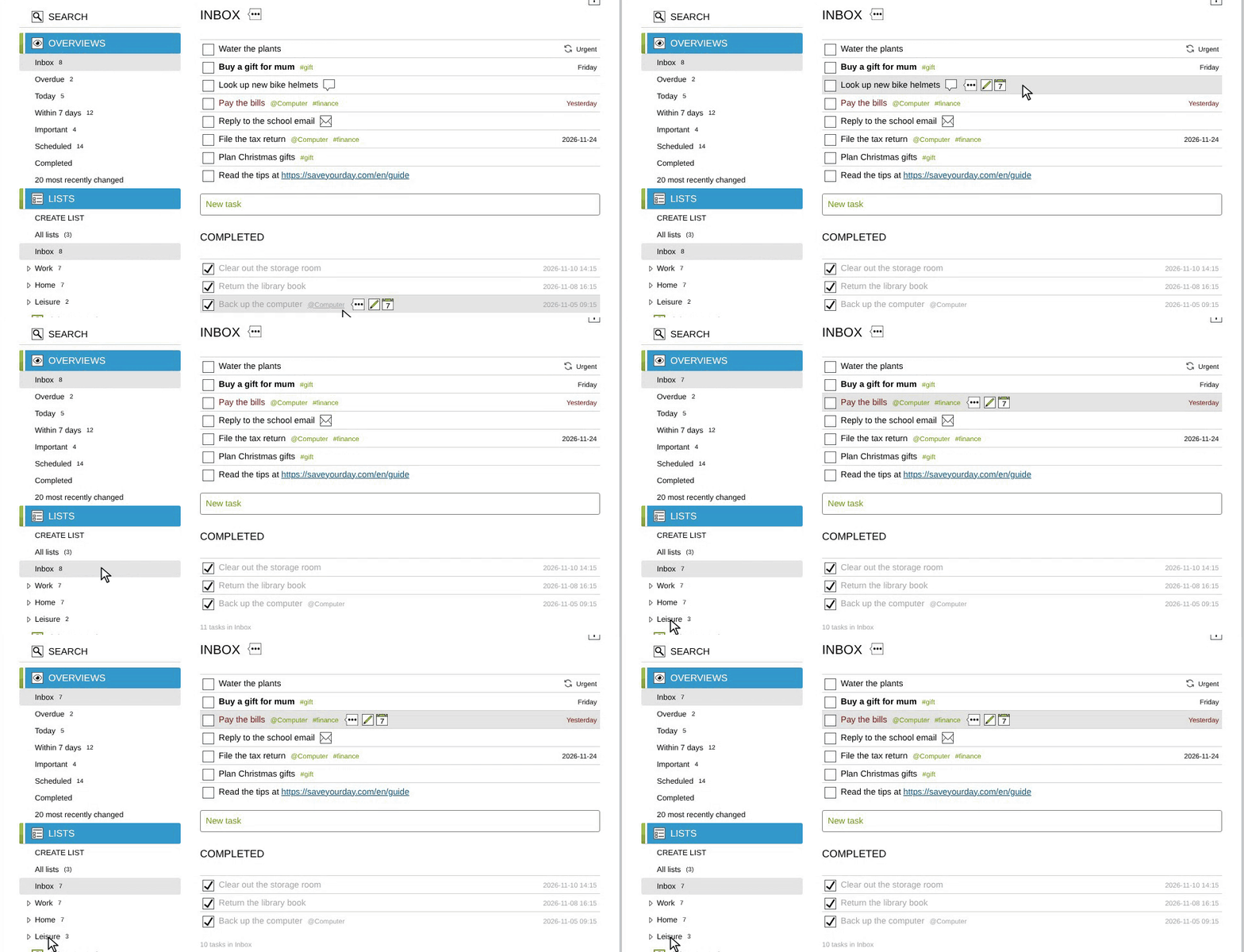
Within the list
In lists, contexts, the Inbox and All lists you change the order by dragging, for example to put the tasks in the order you will do them. The order is kept, so you feel at home next time. Read more under Sort in two dimensions.
Within 7 days
In Within 7 days you move a task to another day by dragging it to that day's heading. The deadline then changes to that day.
To the left menu
Drag a task or list to the left menu to plan it:
- Inbox – move it to the Inbox.
- Today – set today as the deadline.
- Important – make it important.
- Completed – complete it. A list is completed after you confirm.
- A list – move it into the list.
- All lists – make a list a main list.
- A context – give it the context. A task has one context, so any earlier context is replaced.
- A tag – add the tag. The task keeps its other tags.
- Trash – delete it.
Example: today's date and much more
Drag a task to Today to give it today's date, then to Important, to the context @Phone and to the tag Waiting for. Four drags, and the task is planned.