Lists
Lists in SaveYourDay have the same properties as tasks and can be nested many levels deep. Keep track of work and private life.
Under Lists in the left menu you find your lists and their tasks. A list collects tasks and sublists that belong together, such as a project or an area.
- Type a new task in the New task field and press Enter.
- The most recently completed are shown below the rows.
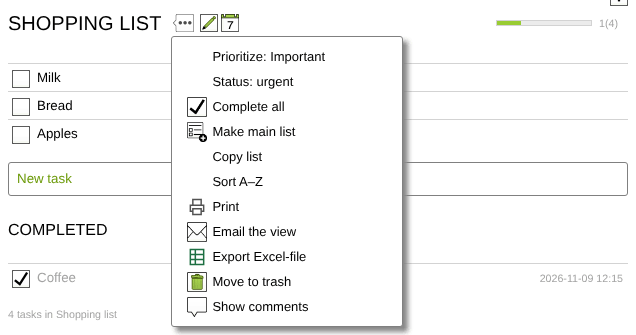
- Turn a task into a list with Make sublist in the quick menu . Move a list by dragging it to another list in the left menu.
- The pen next to the heading opens Edit list with the same properties as a task: dates, context, tags and comment. The calendar beside it sets dates on the whole list.
- The heading's quick menu has, among others, Copy list, Email the view, Export Excel-file, Print, Sort A–Z, Complete all and Move to trash.


If you have lists in Excel you can import them; read more under Import.
Tip! Start and end dates on the whole list work especially well for project lists and for checklists you follow at set times.
Why lists?
Lists let you group tasks the way that suits you, and keep them in the right order:
- Nested lists – put lists in lists, many levels deep. Read more under Nested lists.
- Controlled order – prioritise by putting the tasks in the order you will do them. The order is kept.
- Start date – keep track of things you must remember but can't start yet, such as a contract to renegotiate next May.
- Smart formatting – important tasks are in bold and tasks with a later start date in grey, so the list feels shorter. Read more under Smart formatting.
- Smart list headings – a list has the same properties as a task. Set dates, context or tags on the whole list instead of on every task. Read more under Smart list headings.
What you always get
- Contexts and tags become links, so you reach the context's or tag's view with one click.
- With email reminders switched on you get an email when the start date or deadline of a list or task comes up.
- What you complete is saved with the time and shows under Completed.
- Lists and tasks with dates show in Scheduled, and as the date gets near also in Today and Within 7 days.
- What you delete you can restore from the Trash.
How many?
You can have 200 tasks and lists without Premium. Completed items and what is in the trash count too, so empty the trash when you want to free up space. With Premium there is no limit.
Tip! A good to-do list helps you set the right priorities. Keep as few main lists as possible, for example one for work and one personal, so you can concentrate on work while working and relax when you are off.
Example: lists at work
- To do
- Maybe later
- Notes and ideas
- Checklists and instructions
- Meeting agendas
- Finished projects
Example: personal lists
- To do
- Maybe later
- Packing lists
- Books and films to try
- Travel planning
- Home and garden projects
- Wish lists and Christmas gifts
Tip! The to-do list easily grows too long if you mix in "maybe later". Only put in what you really can and want to do, and collect the rest in a list of its own.