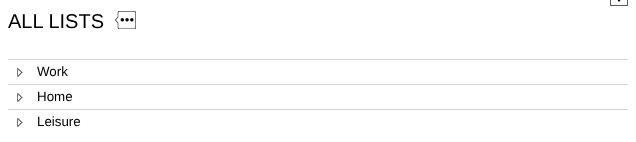
All lists
All lists shows your main lists. Change their order here and it changes in the left menu too, and group lists with similar content.
The All lists view shows all your main lists, the same as under Lists in the left menu.
Change the order of the lists in the menu
Changing the order here also changes it in the left menu. Drag a list where you want it, or choose Sort lists A–Z in the heading's quick menu . On a phone, tap the row and use the up and down arrows in the toolbar.

Main lists
A main list is a list at the top level. Turn an existing list into a main list by dragging it to the lists heading or to All lists in the left menu, or choose Make main list in the list's menu.
If you drag a main list to another list, here in All lists or in the left menu, it becomes a sublist there. A list cannot be moved to the Inbox.
Tip! Group lists with similar content, for example work lists in one list and checklists in another.
Bring order to your lists
The fewer main lists, the easier it is to keep track. Start, for example, with Work and Personal, and put projects, checklists and ideas as sublists in them. Put the list you use most at the top, and it comes first in the menu.