

The left menu
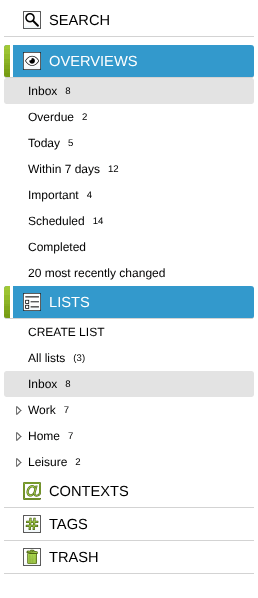
The left menu is always at hand, so you switch between overviews, lists, contexts and tags with one click and can drag tasks there.
That keeps the number of clicks down. You can drag both tasks and lists to most of the headings in the menu to plan them.
On a phone, open the menu with the Menu button at the top.
Search
Search for tasks and lists across your account, comments included. Read more under Search.
Overviews
An overview shows tasks that have something in common, such as today's date or the priority important. A task can therefore be in several overviews. The number shows how many tasks are waiting. Read more under Overviews.
Lists
Under Lists you find your main lists with their sublists. Click a list to open it.
In the list, every row shows dates, context and tags, and clicking the context or tag takes you there. You can create as many lists as you like.
Contexts
Here you filter out tasks with a certain context, for example @Phone or @Errands. You can create as many contexts as you like.
Tags
Here you filter out tasks with a certain tag. A task can have several tags, and you can create as many as you like.
Trash
Here is what you have deleted, until you restore it or empty the trash. Read more under Trash.
Drag to the menu
Drag a task to Today to give it today's date, to Important to make it important, to a list to move it, to a context or tag to label it and to Trash to delete it. Read more under Drag and drop.