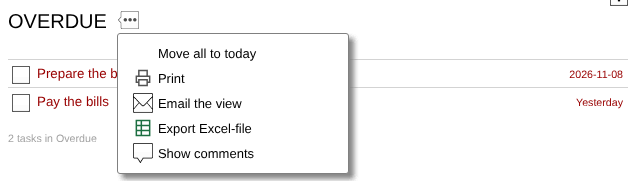
Overdue
Overdue shows tasks whose deadline has passed. Move them all to today in two clicks.
This view shows open tasks whose deadline has passed, the most overdue first. An overdue task always shows its date in red, whatever list or view it appears in. Decide what happens to each one: do it, move the date or drop it.
- Move to today in the quick menu gives the task today's date, and Postpone for a week adds seven days to its deadline.
- Click the date picker to choose a new date or remove it.
- Completed and rescheduled tasks leave the view.


Tip! Move them all at once: choose Move all to today in the heading's quick menu .
Avoid a long red list
Starting the day with a long list of overdue tasks feels heavy. So only set a deadline when there really is one. Things you want done soon but that have no deadline can get the status Urgent instead; they then stay in Today without turning red. And things you can't start yet get a start date. That keeps Overdue short, or at best empty.