Scheduled
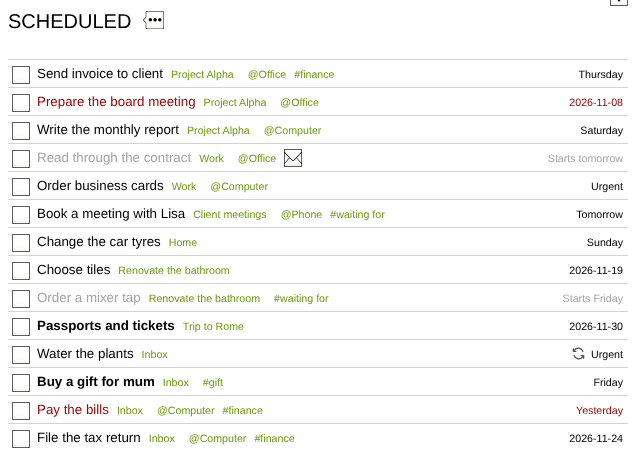
Scheduled gives you an overview of everything planned ahead, in date order. Start dates keep tasks greyed out until it is time.
Here you get a quick overview of everything planned ahead: tasks with a deadline, with a start date that has not come yet and with the status Urgent. They are in date order, nearest first.
- The date is at the far right. Starts before the date means the task becomes relevant only then; on its start day it also shows in Today, and the week before in Within 7 days.
- Tasks are created in a list or in the Inbox; they show here once they have a date.
- Click the date picker to change the start date or deadline, or open Edit to add a recurrence.

Tip! Set a start date for tasks that are far ahead. The task is then shown in grey in every view until the day it is time to begin.
Forget nothing, without thinking about it in advance
The contract to cancel in May, the passport to renew before the trip, the swimming lessons to sign up for in the autumn. Write it down now, give it a start date and let it go. Until then it is greyed out and takes no space in your head, and Scheduled shows everything that is coming. With email reminders switched on under Account settings you also get an email when it is time to start.