

Overviews
The overviews collect tasks from all your lists by date, priority and status, so you see what matters today and ahead with a single click.
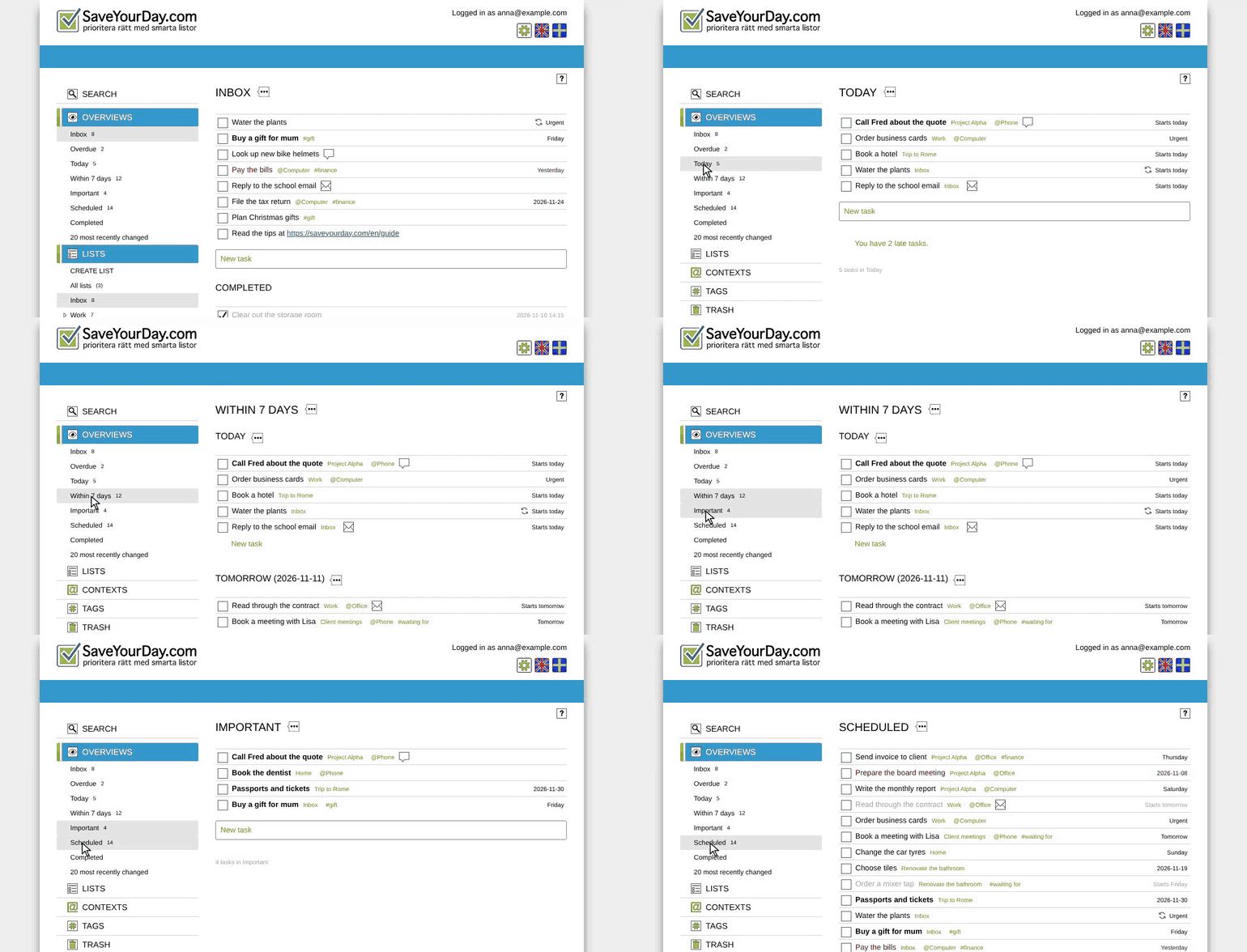
Get the full picture with one click. An overview shows tasks that have something in common, whatever list you wrote them in. All of today's tasks are in Today, for example, and everything you have marked as important is in Important. The same task can therefore appear in several overviews.
Why not columns?
We chose not to give the lists a spreadsheet look with lots of columns, because columns easily distract. Instead, contexts and tags are links after the task, and the overviews are always one click away in the left menu. You don't have to filter columns to find what to do right now.
The overviews
- Inbox – tasks that are not in a list yet.
- Overdue – open tasks whose deadline has passed.
- Today – tasks with today's deadline or start date, and tasks with the status Urgent.
- Within 7 days – the week ahead, one group per day, with start dates or deadlines within seven days and the status Urgent.
- Important – open tasks you have marked as important.
- Scheduled – tasks with a deadline, a start date still to come or the status Urgent.
- Completed – completed tasks and lists from all lists, most recently completed first.
- 20 most recently changed – the 20 tasks and lists you most recently created or changed.
Counters
The number next to Overdue, Today, Within 7 days and Important in the left menu shows how many tasks are waiting there. You see where you stand without opening a view.
Save time: create the task in the overview
In Today, Within 7 days and Important you can type new tasks straight in, and they get the view's properties for free. A task you type in Today gets today's date as its deadline, in Within 7 days the date of the day you type it under, and in Important it becomes important. Read more about quick entry.
Tasks you type in an overview go to the Inbox. To put them straight into a list, type $$list name after the task. In Overdue, Scheduled, Completed and 20 most recently changed you don't create tasks; they show what you already have.