

Comments
Keep the task short and put the rest in the comment: links, images, tables and notes.
Phone numbers and everything else fit there too, and the task's name stays an action you can tick off.
Write a comment
Click the pen on the row and write in the Comment field in Edit. Save as usual.

The comment can be formatted with headings, lists, tables and images, read more under Format comment. When you email in a task, the email's text is saved with the task.
See the comment
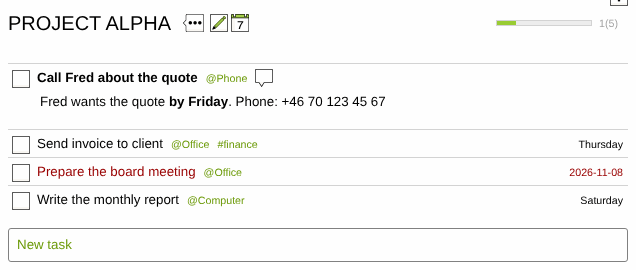
If a task has a comment, the comment icon is shown after its name, in every view. Click the icon to read the comment.
Show the comments right in the list
Choose Show comments in the heading's menu, and the comments are shown under each task in the list. You get a quick overview of all the details, for example before a meeting. Choose it again to hide them.