

Edit
In Edit you change all properties of a task or list at once: dates, list, context, tags, priority, recurrence and comment.
The properties decide where a task shows up. Make it important and it is in Important; give it a date and it is in Scheduled and, when the day comes, in Today. The overviews give you the full picture and help you prioritise, and in Edit you set everything at once.
Click the pen on the row, or press Enter when the row is selected. Edit opens as a box. Change what you want and click Save, or Cancel if you change your mind. On a phone, tap the row and choose Edit in the toolbar.

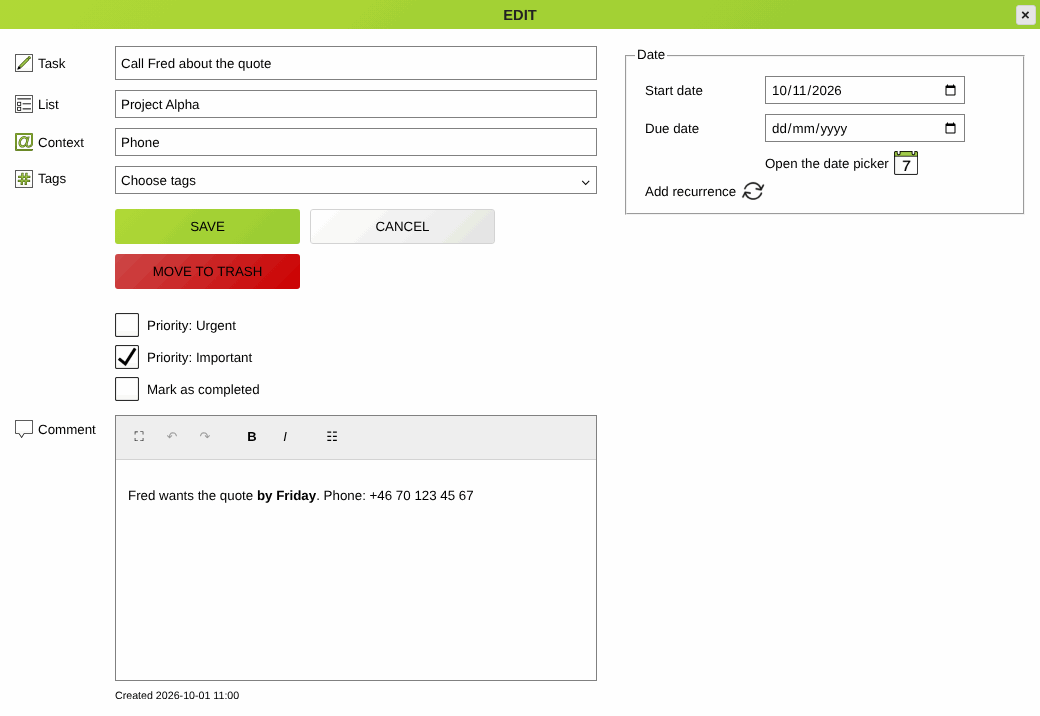
The properties
- Name – the task's or list's name, at most 200 characters.
- Start date – when the task can be started. The field is empty until you pick a date.
- Due date – when the task should be done.
- Recurring – the task comes back, read more under Recurring.
- Urgent – the task stays in Today, Within 7 days and Scheduled until it is done.
- Important – the task is in Important and shown in bold.
- List – the list the task is in, or the Inbox. A task is in one list.
- Main list – for a list: make it a list at the top level.
- Context – where or how the task is done, for example @Hardware store. A task has one context.
- Tags – a task can have several tags.
- Comment – what doesn't fit in the name. The comment can be formatted and hold images, read more under Format comment. A comment can be 200,000 characters long, and longer with Premium.
- View email – for a task you emailed in: opens the email.
- Completed – when the task was completed.
- Created by – who created the task and when.
A new list or context on the spot
Is the list or context you want missing? Create it while you edit.
Type the new name in the List or Context field and choose Create new list or Create new context at the end of the suggestions, or press Enter. A new list becomes a main list and the task moves there.
Tip! If you only need to change one thing it is often quicker without Edit: click the name to change it, the date to change that, or drag the task to the left menu.