

Quick entry
Type a new task straight into the view. It gets the view's properties, and with $$, @@ and ## you set list, context and tags as you type.
Type a new task right where you are. The New task row is in the Inbox, in every list, context and tag, and in Today, Within 7 days and Important. Type and press Enter, and the task is there.
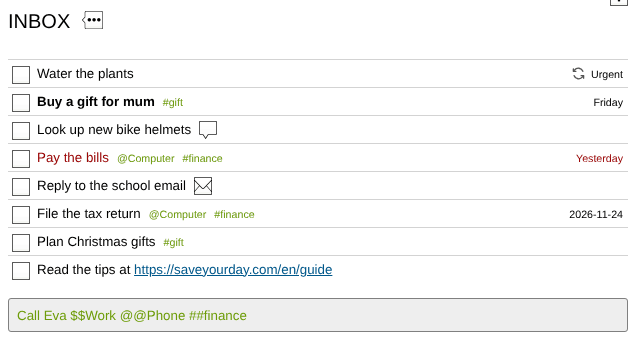
The task gets the view's properties
- Today – due today.
- Within 7 days – due on the day you type it under.
- Important – priority important.
- A context – the context.
- A tag – the tag.
- A list – the task goes into the list.
Tasks you type in an overview, context or tag go to the Inbox unless you name a list.
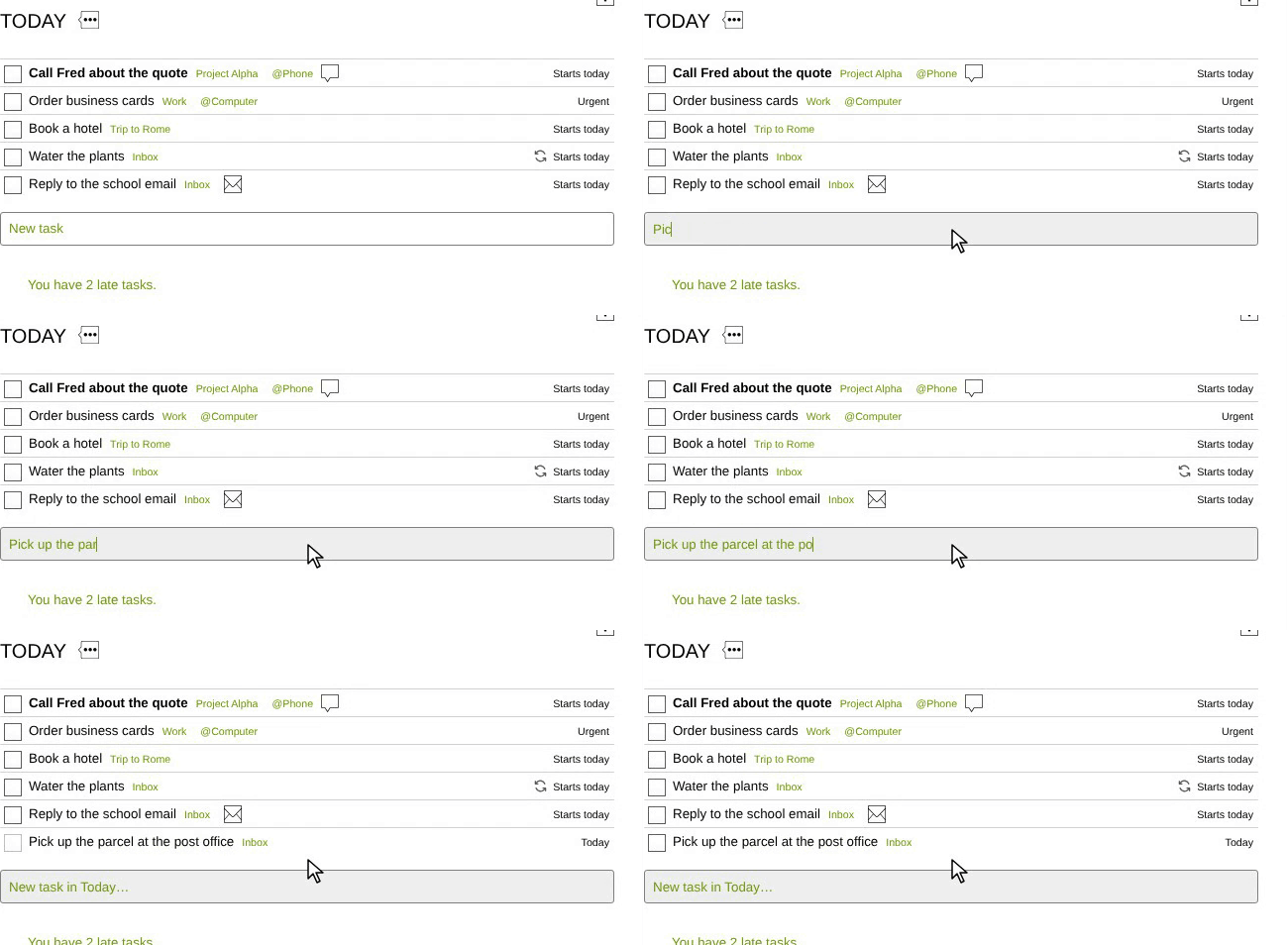
List, context and tags as you type
Type the name first, then any of these:
- $$list – puts the task in the list. If there is no list with that name, a new main list is created.
- @@context – gives the task the context. The context must already exist.
- ##tag – gives the task the tag. The tag must already exist.
Example: Call Fred about the quote $$Project Alpha @@Phone ##Waiting for ends up in the list Project Alpha with the context Phone and the tag Waiting for.
Combine it with the view's properties: type it in Today and the task also gets today's date.
Tip! $$, @@ and ## are only read when you create a task, not when you rename one. Drag and drop to the left menu is another quick way to give a task properties.